Due largely in part to the recent importation of @deandddd's website and the creation of Dean's Corner, you can now make a post look like a page from a book: a serif face, a big opening letter, pictures with captions, text running beside a picture, small capitals, even margins, two columns, a boxed note.
Everything below is in the composer. Click the … button on the toolbar and pick a style from the menu. Whatever you had selected gets the style; if nothing was selected you get a line to type over. Center, Picture on the left and Picture on the right also have their own buttons on the toolbar. If you write in the Markdown editor (the first button on the toolbar switches to it), the preview shows each style as you type.
Every style starts with [wrap=…] and ends with [/wrap]. If a style does nothing, the closing [/wrap] is usually what is missing.
Posts can also carry equations, chemical formulas and diagrams. The √x button on the toolbar opens the equation editor, and the diagram button next to it opens the diagram editor. Both draw what you write as you type, and both are explained below, starting at Equations. Equations pasted from ChatGPT, Claude, Gemini or Grok come in ready to display.
Book type
Sets a passage in Literata, the serif face the books in Dean's Corner are set in, at a comfortable reading size.
[wrap=serif]
Two spirits stood at the mouth of the cave, and neither of them spoke.
[/wrap]
Two spirits stood at the mouth of the cave, and neither of them spoke.
It works inside a sentence as well: he wrote [wrap=serif]in his own hand[/wrap] that …
A large opening letter
The first letter of the paragraph grows three lines deep, the way a chapter opens in a printed book.
[wrap=dropcap]
Words fail a man when he first sees the inner sun. I had read every account of it that had been written, and not one of them had prepared me.
[/wrap]
Words fail a man when he first sees the inner sun. I had read every account of it that had been written, and not one of them had prepared me.
If the paragraph opens with a quotation mark, the mark grows with the letter, as it does in print. [wrap=dropcap lines=2] makes the letter two lines deep; 2, 3 and 4 are available.
Center
For a line of text, a heading or a picture.
[wrap=center]
Written at Pedreira, in the winter of 1997.
[/wrap]
Written at Pedreira, in the winter of 1997.
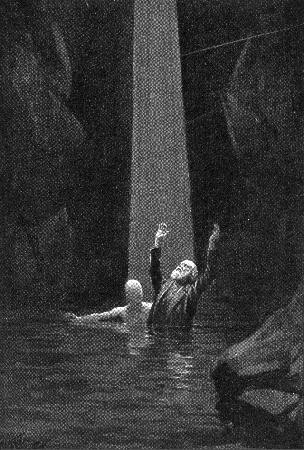
A picture inside it sits in the middle of the post instead of against the left edge. Add width= to hold it to part of the column; the sizes are 25, 30, 33, 40, 45, 50, 60, 66, 70, 75, 80 and 100. Here is a plate from Etidorhpa at forty percent:
[wrap=center width=40]

[/wrap]
A picture with a caption
Put the picture on the first line and the caption on the second. They become one piece: the picture centered, the caption in quiet italic beneath it.
[wrap=figure]

Moncayo, Spain, 1997. Photograph by Dean De Lucia.
[/wrap]
To caption a picture you have already placed, use the caption on its own:

[wrap=caption]Moncayo, Spain, 1997.[/wrap]
A picture with text beside it
The picture goes to one side and the text flows around it.
[wrap=float side=left]

[/wrap]
Your paragraph goes here. It runs down the side of the picture and closes up beneath it once it passes the bottom edge.
side=right puts the picture on the right. width= sets how much of the column it takes, for example [wrap=float side=right width=30]. A captioned figure can float the same way: [wrap=figure side=right width=40]. On a phone the picture goes full width and the text sits beneath it.
J. Augustus Knapp drew the plates for the 1895 edition of Etidorhpa, and Dean reproduced them beside the chapters they illustrate. This paragraph runs down the right-hand side of the plate and closes up beneath it once it has passed the bottom edge, which is exactly what your own paragraph will do when you place a picture this way. The next paragraph, or a --- line, ends the wrapping.
Small capitals
Signed, [wrap=smallcaps]Dean Dominic De Lucia[/wrap], Pedreira.
Signed, Dean Dominic De Lucia, Pedreira.
Capital letters stay full size and the small letters become small capitals. Good for a name or the first few words of a piece.
Even margins
Makes both edges of the text flush and hyphenates so the spacing stays even.
[wrap=justify]
The hollow earth literature of the nineteenth century is larger than most readers suppose, and a surprising amount of it was written by men who had no interest at all in fiction.
[/wrap]
The hollow earth literature of the nineteenth century is larger than most readers suppose, and a surprising amount of it was written by men who had no interest at all in fiction.
For Portuguese, add the language so the words break in the right places: [wrap=justify lang=pt]. On a phone the text returns to a ragged right edge, since the column is too narrow for even margins.
Two columns
For a list of names or a run of short paragraphs.
[wrap=columns]
- Etidorhpa
- The Smoky God
- A Journey to the Earth's Interior
- The Phantom of the Poles
[/wrap]
- Etidorhpa
- The Smoky God
- A Journey to the Earth's Interior
- The Phantom of the Poles
[wrap=columns count=3] gives three columns. On a phone there is always one.
A note
A boxed note in the flow of the text, for an aside that is not part of the argument.
[wrap=note]
**A note on names.** Dean signed his Portuguese pages Dharmapad, and the forum links both names to the same account.
[/wrap]
A note on names. Dean signed his Portuguese pages Dharmapad, and the forum links both names to the same account.
A note beside the text
The same box, set to one side with the text running past it.
[wrap=aside]
Dean kept this photograph on his desk for twenty years.
[/wrap]
side=left puts it on the left and width= sizes it: [wrap=aside side=left width=30]. On a phone it goes full width.
Combining styles
Styles nest: a centered picture inside a book-type passage, a drop cap on a paragraph with even margins, a caption under a floated picture. Each [wrap=…] needs its own [/wrap].
[wrap=serif]
[wrap=dropcap]
The manuscript continued, and what it said next I have never been able to explain to anyone's satisfaction, including my own.
[/wrap]
[/wrap]
Equations
Write an equation between dollar signs. One dollar sign on each side keeps it in the sentence. Two, on lines of their own, set it apart in the middle of the column.
The pressure force on a volume is $\mathbf F=-\int_V \nabla P\,dV$, added up over every part of it.

$$
\mathbf F=-\int_V \nabla P\,dV
$$
The pressure force on a volume is \mathbf F=-\int_V \nabla P\,dV, added up over every part of it.
The easiest way in is the equation editor: the √x button on the toolbar.
- Describe it in words. The box at the top takes an equation the way you would read it aloud: E equals m c squared, or x equals minus b plus or minus the square root of b squared minus 4 a c, all over 2 a. Press Enter and it becomes the equation below, ready to change. Put back what was there undoes it. It reads English, and a word it does not know stays a word, for you to finish below.
- Visual is the equation itself, typed as on paper:
/starts a fraction,^a power,sqrta root andpia π, and the arrow keys move between the parts. Math keyboard opens keys on the screen, and Common formulas has a gallery to start from. - LaTeX shows the same equation as LaTeX, for anyone who knows it. The two stay in step.
The keys under the box, for fractions, roots, integrals, Greek letters, arrows, vector operators, chemistry and units, work in both. The equation is drawn underneath as you go. Insert, or Ctrl+Enter (⌘+Enter on a Mac), puts it where your cursor was. To change an equation later, select it, dollar signs and all, and click √x again.
The notation is LaTeX, the one scientific papers are written in. x^2 raises and x_0 lowers, and braces hold anything longer, as in x^{n+1}. \mathbf F is a bold vector. \, is a thin space: P\,dV sets the dV a little apart, where P,dV prints a comma.
Numbered equations
Add \tag{1} to number an equation. Give it a name with \label{…} and \eqref{…} points back to it from anywhere else in the same post.
$$
\nabla P = \rho\,\mathbf{g} \tag{1} \label{eq:balance}
$$

In still water the pressure balances the weight, as $\eqref{eq:balance}$ says.
In still water the pressure balances the weight, as \eqref{eq:balance} says.
In the equation editor, Numbered adds the tag for you and picks the next number in the post.
Several lines, lined up
Put & before the sign the lines should line up on, and \\ at the end of every line but the last.
$$
\begin{aligned}
\mathbf F &= -\int_V \nabla P\,dV \\
&= -\oint_S P\,d\mathbf{A}
\end{aligned}
$$
The second line is the same force added up over the surface instead of through the volume: the push of the medium on every patch of the boundary.
Chemistry
Chemical formulas and reactions go inside \ce{…}, within the dollar signs. The numbers drop to subscripts, charges rise, and the arrows draw themselves.
Hydrogen burns to water, $\ce{2H2 + O2 -> 2H2O}$, and carbon dioxide dissolves into carbonic acid, $\ce{CO2 + H2O <=> H2CO3}$. Sulfate is $\ce{SO4^2-}$.
Hydrogen burns to water, \ce{2H2 + O2 -> 2H2O}, and carbon dioxide dissolves into carbonic acid, \ce{CO2 + H2O <=> H2CO3}. Sulfate is \ce{SO4^2-}.
In the equation editor's words box, 2 H two plus O two yields 2 H two O writes the first of these for you, and says whether the reaction balances.
Physics shorthand
Begin an equation with \require{physics} to use the physics package: \grad, \div, \curl, \laplacian, \dv and \pdv for derivatives, \vb for a bold vector, \abs, \norm, \bra, \ket and many more.
$$
\require{physics}
\pdv{\rho}{t} + \div(\rho \vb{v}) = 0
$$
Once a page has loaded the package, \div means divergence everywhere on that page, and the division sign becomes \divisionsymbol.
Reading and copying an equation
Right-click an equation, or press and hold on a phone, for a menu that shows the LaTeX behind it and copies it. Alt-click enlarges it.
Pasting from ChatGPT, Claude, Gemini and Grok
Paste an answer from any of them straight into the composer, in either editor, and its equations come with it. ChatGPT and Grok put equations between \( … \) and \[ … \]; as you paste, these become the dollar signs this site reads, so the preview shows the equations drawn. Claude and Gemini mostly write dollar signs already, and those come in as they are; when either puts $$ … $$ in the middle of a sentence, it becomes the single pair a sentence needs.
Copying the answer from the page works as well as its copy button. An equation copied as it is drawn, in an AI chat or on Wikipedia, comes in as its LaTeX, as long as the page keeps the LaTeX behind the drawing. Code blocks are left exactly as they were.
Diagrams
A diagram here is drawn from a few lines of text, so it stays sharp at any size and can be edited like the rest of the post. Click the diagram button on the toolbar and pick a picture to start from. Change it right on the drawing, as described under Building a diagram without writing it, or change the words of the text, and the drawing follows as you go.
```mermaid
flowchart LR
    A[Pressure difference] --> B{Does the structure resist it?}
    B -- yes --> C[Stress builds up]
    B -- no --> D[The medium flows]
```
flowchart LR
    A[Pressure difference] --> B{Does the structure resist it?}
    B -- yes --> C[Stress builds up]
    B -- no --> D[The medium flows]
A chart takes its numbers straight from the text:
```mermaid
xychart-beta
    title "Example readings"
    x-axis [0, 3, 6, 9, 12, 15, 18, 21]
    y-axis "Fringe shift" 0 --> 10
    line [2, 3, 5, 8, 9, 7, 4, 3]
```
xychart-beta
    title "Example readings"
    x-axis [0, 3, 6, 9, 12, 15, 18, 21]
    y-axis "Fringe shift" 0 --> 10
    line [2, 3, 5, 8, 9, 7, 4, 3]
Every diagram has a button in its corner that opens it full screen. The language is called Mermaid, and the diagram editor links to its guide. If you already know Graphviz, a DOT graph between [graphviz engine=dot] and [/graphviz] is drawn as well; it shows in the post and in the Markdown editor's preview, not in the rich-text editor.
Building a diagram without writing it
The diagram editor opens on Pictures to start from: steps in a process, a decision, a cycle, a timeline, charts, a mind map, a family tree, a conversation and more, each drawn small with a line saying what it is for. Pick the one closest to what you want and change it.
Or describe it in words, in the box at the top: steps (first boil the water, then add the tea, finally pour it), a decision (if the compass swings wildly, steer by the stars; otherwise trust the compass), causes (heat causes expansion), a topic with branches (Planets: rocky (Mercury, Mars), giants (Jupiter)), dates, numbers or a conversation. Ctrl+Enter (⌘+Enter on a Mac) turns it into the drawing below, ready to change, and Put back what was there undoes it.
Flowcharts, states and mind maps are changed right on the drawing:
- Click a box to choose it. A small bar appears above it: Change the words, Join to another box and Delete. Double-clicking a box also lets you type in it.
- + beside the chosen box adds the next step, already joined and ready to type in. A decision box has a second + for another path.
- To join two boxes, drag the link button onto the other box, or click it and then click the box.
- Right-click a box, or press and hold on a phone, for everything at once, its shape included.
- On a mind map, + or Tab adds an idea under the chosen one, and Enter adds one beside it.
- Keys: the arrow keys move between boxes, Enter adds the next step, F2 changes the words, Delete removes, and Escape cancels whatever you are in the middle of.
Edit as a list, under the drawing, shows the same diagram as rows if you would rather type. A mind map's list is an outline: Enter adds a line, Tab moves it in a level, Shift+Tab moves it back out, and Backspace on an empty line removes it. Charts, timelines and sequences are filled in as forms:
- Charts: a row for each point along the bottom and a column for each series. Enter moves down a row and adds one at the end. Cells copied from a spreadsheet paste into the grid; paste a whole table into the top-left cell and its first row names the series.
- Timelines: a date or period on each row, and what happened then, one entry per line.
- Sequences: the participants, then the messages between them in order.
Visual and Text show the same diagram, and a change in either shows in the other. Undo and Redo (or Ctrl+Z) step through your changes, and Ctrl+Enter (⌘+Enter on a Mac) inserts the diagram, the same as Insert. A diagram that uses more than the editor covers stays in Text, and so does Graphviz.
Definitions, claims and derivations
Five boxes in the … menu frame the parts of an argument: Definition box, Claim box, Derivation box, Example box and Abstract. A title and a number go into the label.
[wrap=definition title="Aether"]
The medium that fills space and carries light.
[/wrap]

[wrap=claim number=1]
A body in the medium moves toward the side of lower pressure.
[/wrap]

[wrap=derivation]
Turn the volume integral into a surface integral:
$$
\mathbf F = -\int_V \nabla P\,dV = -\oint_S P\,d\mathbf{A}
$$
[/wrap]
The medium that fills space and carries light.
A body in the medium moves toward the side of lower pressure.
Turn the volume integral into a surface integral:
A claim is set in italic, as a theorem is in print. Abstract sets a short summary under a centred heading, the way a paper opens.
Tables, code, footnotes and long posts
- Tables: the table button on the toolbar builds one, and cells copied from a spreadsheet paste in as a table.
- Code: put code between lines of three backticks and name the language after the opening ones, as in
```python. Python, R, Julia, MATLAB, Fortran, Mathematica and LaTeX are among the languages that get coloured. In the post, code is set in JetBrains Mono, which joins signs such as->,=>and!=into one; in the composer every character stays separate. - Footnotes:
[^1]in the text and[^1]: the noteon a line of its own at the end. Add footnote in the … menu does both. - Long working can fold away:
[details="Full derivation"]and[/details]around it leave one line that opens when clicked. Hide details in the … menu puts them in. - A table of contents for a long post: Insert table of contents in the … menu lists the post's headings beside it.
- Interactive graphs: paste the embed code from Desmos or GeoGebra, or from a PhET simulation, and the working graph appears in the post.
If something looks wrong
- The style did nothing: check for the closing
[/wrap]. - The text after a floated picture went strange: the paragraph after the picture should be plain text. A
---line stops the wrapping early. - The style is not in the preview: the spelling of the style name is the usual cause. What the preview shows is what the post will show.
- An equation shows its dollar signs: the character after the closing
$must be a space or punctuation, not a letter, and an equation inside a sentence cannot run onto a second line. - A price is safe:
$5 and $10stays as written. To write a dollar sign that must never start an equation, type\$. - An equation from an AI still shows
\[ … \]or\( … \): it went into a code block, where nothing is changed, or it was typed rather than pasted. Change them to$$ … $$and$ … $, or paste the equation into the equation editor's field, which takes them off for you. - A diagram shows an error instead of a drawing: the message names the line Mermaid could not read.
- The diagram editor shows only Text: the diagram uses something the editor does not cover, or it is Graphviz. Edit the text; the drawing still follows.
- The words box kept some words as words: it reads plain English, said the way you would read it aloud. Say it another way, or finish the equation or diagram in the editor below.
- Anything else: ask in Support & Feedback.